
Crafters: Open, Create, and Secure ZIP Downloads with NCSC Checks

Most files packaged as .zip open with the tools already sitting on your device. Windows, macOS, iPhone and Android all handle extraction natively, so before you install anything, check the source is trustworthy and scan the archive. That single habit, source check plus scan, prevents most of the trouble people run into with zip files for downloads.
TL;DR:
- Most operating systems handle ZIP extraction natively, but verifying the source and scanning archives before opening remains crucial for security.
- When creating ZIP files, use built-in tools like right-click compression on Windows or macOS or command-line options on Linux, and avoid relying solely on password protection for sensitive data.
- Testing ZIP integrity with standard commands or tools helps identify corruption before attempting to re-download or re-extract, reducing file recovery time.
- Keeping offline backups and organizing files with clear naming and version control prevent loss and facilitate easy access for future projects.
- Limiting deep nesting and avoiding untrusted archives help prevent malware evasion tactics like polyglot files or multi-volume archives.
Table of Contents
- How to download and open zip files on Windows, macOS, Linux, iPhone and Android
- How to create zip files for downloads and sharing on each platform
- Safety and best practice when downloading zip files
- Fixing damaged zips and tracking down missing downloads
- Managing purchased craft ZIP downloads: back up, organise and protect your files
- A quick habit that saves most people the headache
- Where to get organised craft downloads on Craftsuprint
- Sources
- FAQ
How to download and open zip files on Windows, macOS, Linux, iPhone and Android
Opening a downloaded archive shouldn’t need a manual, and on most platforms it doesn’t. Here’s the fastest, safest route on each system.
- Windows. Downloaded ZIPs land in your Downloads folder by default. Double-click to preview the contents without extracting anything, a genuinely underused trick that lets you check what’s inside before committing. When you’re ready, right-click and choose “Extract All”, or run
Expand-Archivein PowerShell if you’re comfortable with the command line. Microsoft’s own support documentation walks through both routes. - macOS. Finder handles ZIPs with a double-click via Archive Utility, no extra software required. For more control, Terminal’s
unzipandtarcommands let you target specific files or folders rather than dumping everything into one place. - Linux. Most distributions ship with
unzipandzippre-installed; if not, a quick package manager install sorts it.tarworks as a fallback for archives that arrive in mixed formats. - iPhone and iPad. The Files app has extracted ZIPs natively since iOS 13, a capability that’s now standard across Apple’s mobile line-up. Tap the archive, and iOS unpacks it into a new folder automatically.
- Android. Files by Google handles basic extraction on most recent devices. Older phones or unusual archive types sometimes need a dedicated third-party app, but these are the exception rather than the rule these days.
How to create zip files for downloads and sharing on each platform
Compressing files yourself is just as quick as opening them, and the steps barely change from one operating system to the next.
- Windows: right-click the file or folder, choose “Send to”, then “Compressed (zipped) folder”. Rename it before sharing, and watch out for very long file paths buried deep in subfolders, Windows can choke on these during extraction.
- macOS: right-click and select “Compress” in Finder, or use Terminal’s
zip -rcommand when you need to recurse through nested folders or exclude specific file types. - Linux:
zip -r archive.zip foldernamecovers most cases, and adding flags preserves file permissions when that matters for scripts or executables. - iOS: the Files app lets you select multiple items and compress them directly, no extra download needed.
- Android: most built-in file managers now include a compress option; if yours doesn’t, a lightweight archiving app fills the gap.
- Password protection: it’s worth knowing the limits here. Standard ZIP encryption is better than nothing but far from bulletproof against a determined attacker, so don’t rely on it for genuinely sensitive material.
Safety and best practice when downloading zip files
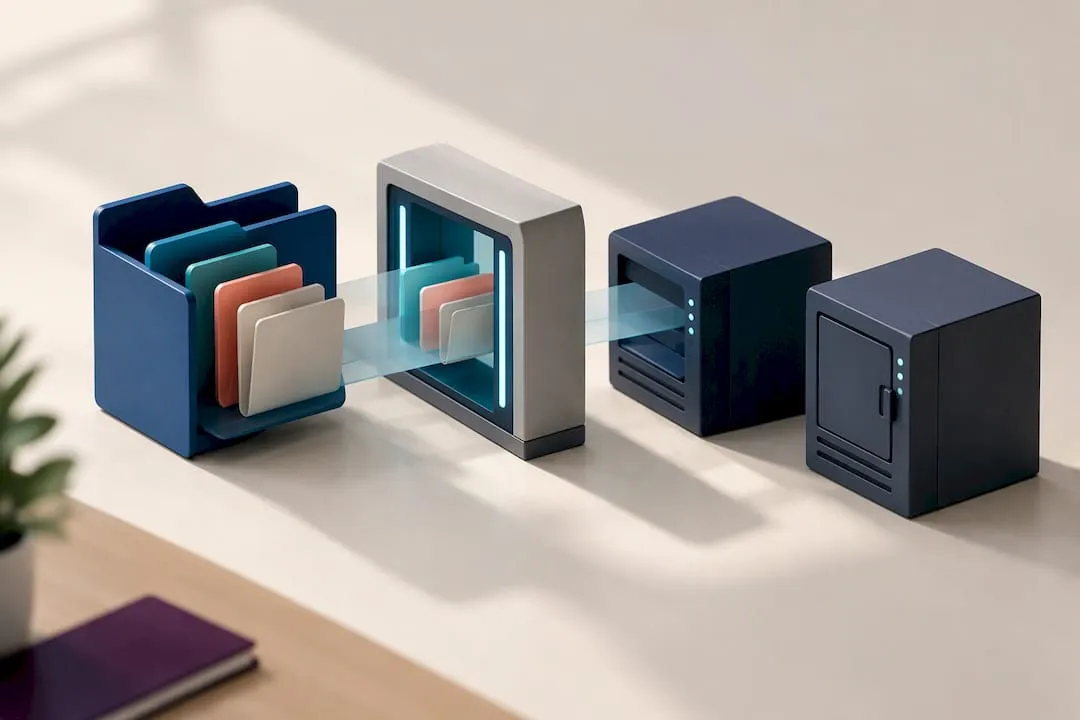
Archives carry a specific risk that a plain document doesn’t: they can hide active content, malformed files, or nested payloads designed to slip past a casual glance. NCSC guidance treats archive scanning as a core part of reducing ransomware exposure, and that advice applies just as much to a home user as it does to an IT department.
A few habits make a real difference:
- Verify the publisher or site before downloading, especially for software rather than media files.
- Where a SHA-256 checksum is published alongside the download, check it. On Windows,
Get-FileHash -Algorithm SHA256confirms in seconds whether the file matches what the developer intended. - Run a scan on the archive itself, before extraction, not just on the files once they’re unpacked.
- Keep your unpacking software patched. Older versions of extraction tools have had vulnerabilities exploited through techniques like Zip Slip, where a crafted archive path writes files outside the intended folder.
- Security researchers have also flagged polyglot files and nested multi-volume archives as ways attackers try to dodge automated scanning, so limiting how deeply archives nest inside one another is a sensible precaution.
Pro Tip: If you download ZIPs regularly, for craft projects, software, or anything else, keep at least one backup copy offline. It’s the one habit that undoes almost any archive-related disaster.
Anyone handling uploaded ZIPs at scale, a small business accepting customer files, say, should also disable automatic unpacking on servers and scan inside nested archives rather than trusting the top layer alone.
Fixing damaged zips and tracking down missing downloads
A ZIP that won’t open is usually a quick fix rather than a lost cause.
- Test the archive’s integrity first:
unzip -ton macOS and Linux,tar -tffor tar-based files, or a basicExpand-Archiveattempt on Windows will tell you fast whether the file is genuinely corrupted. - If it fails, re-download from the original source before trying anything else, an incomplete download is the most common cause of a broken archive.
- Try a different extraction tool if the problem persists; some archives use compression variants that not every unzipper handles cleanly.
- Can’t find the file at all? Check your browser’s download history and default save folder, most browsers save to a standard Downloads directory unless you’ve changed the setting.
- On Windows, permission errors or “path too long” messages usually mean the extraction destination is buried too deep, move it closer to your root drive and try again.
Managing purchased craft ZIP downloads: back up, organise and protect your files
Buying a card making kit or a set of cutting files is only step one. What you do with the archive afterwards decides whether you can find it again in six months.
- Download once, open the file to verify it’s complete, and check any included README for licence terms or usage notes.
- Keep one offline copy and one cloud copy with version history whenever possible, to protect against accidental deletion or hardware failure.
- Name folders with the project and version number, and note the licence terms in the file or folder metadata rather than trusting memory.
- Separate template and example files from your master working files, mixing the two is how people end up printing the wrong version.
- Avoid casually forwarding purchased archives; protecting printable content from unauthorised sharing matters for designers whose income depends on it.
Craftsuprint’s own guidance on protecting digital downloads and on running a structured update workflow covers this in more depth if you’re managing a growing library of purchased craft files.
A quick habit that saves most people the headache
The mistake I see most often isn’t technical ignorance, it’s impatience. People extract straight from the browser’s download prompt without a second glance at where the file came from, and most archive problems trace back to that one skipped step. Build a habit of scanning before you extract and keeping one tidy backup of anything you’ve paid for. It costs seconds and it’s the difference between a smooth afternoon of crafting and a corrupted project file the night before you needed it.
— Rob
Where to get organised craft downloads on Craftsuprint
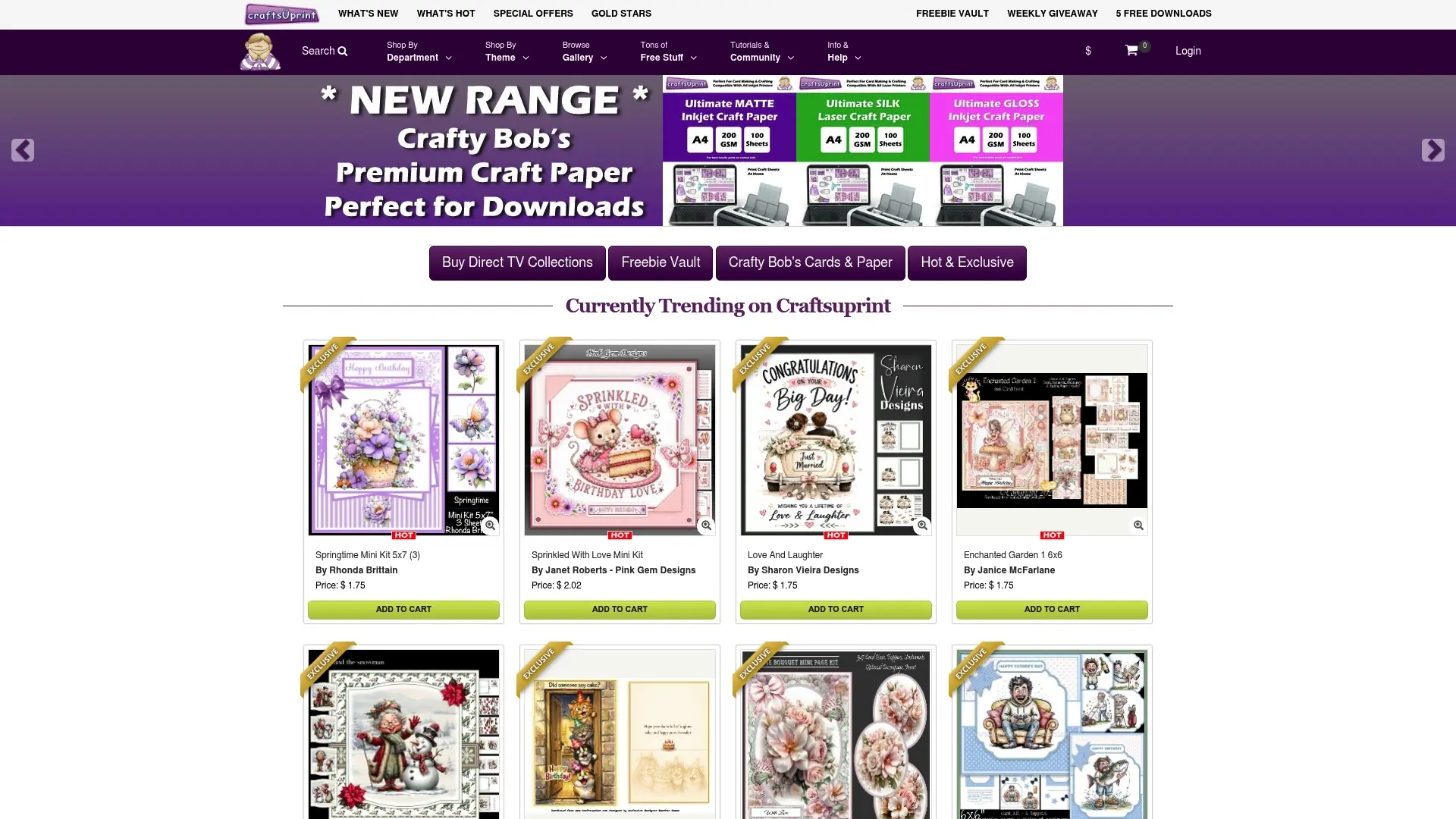
You can find themed printable designs for card making kits, cutting files, or scrapbooking layouts without hunting across scattered forums or unverified file-sharing sites. Categories are organised by theme and often delivered with instructions to help understand what’s inside an archive.
Once you’ve downloaded a kit, follow the backup habits above: verify it opens cleanly, store a second copy somewhere safe, and keep your licence details with the file. If you’re after your next project, the Card Making section is a popular place to browse kits for download.
Sources
- Zip and unzip files — Microsoft Support
- How to zip or unzip files on Windows 11 — Windows Central
- Archive and disk image threats and security policies — Kaspersky blog
FAQ
How do I get a ZIP file to download?
Click the download link on the source website; most browsers save the file automatically to your Downloads folder. Once saved, double-click on Windows or macOS to open it with the built-in archive tool, no extra software needed for standard ZIP files.
How can I download a ZIP file for free?
Free ZIP downloads are widely available for software, templates and sample files, and the process is identical to any other download: click, save, and extract with your device’s native tool. Always check the publisher is legitimate before downloading, particularly for executable software rather than plain documents or images.
Where do I find a downloaded ZIP file?
Check your browser’s default Downloads folder first, that’s where most browsers save files unless you’ve changed the setting. If you can’t locate it there, your browser’s download history (usually accessible via a keyboard shortcut or menu) will show you the exact save path.
How do I create a .ZIP file?
On Windows, right-click the file or folder and choose “Send to”, then “Compressed (zipped) folder”. On macOS, right-click and select “Compress”, both methods use tools already built into the operating system, confirmed in Microsoft’s own support documentation.