
Update Digital Downloads: 5 Step Workflow for Craft Sellers
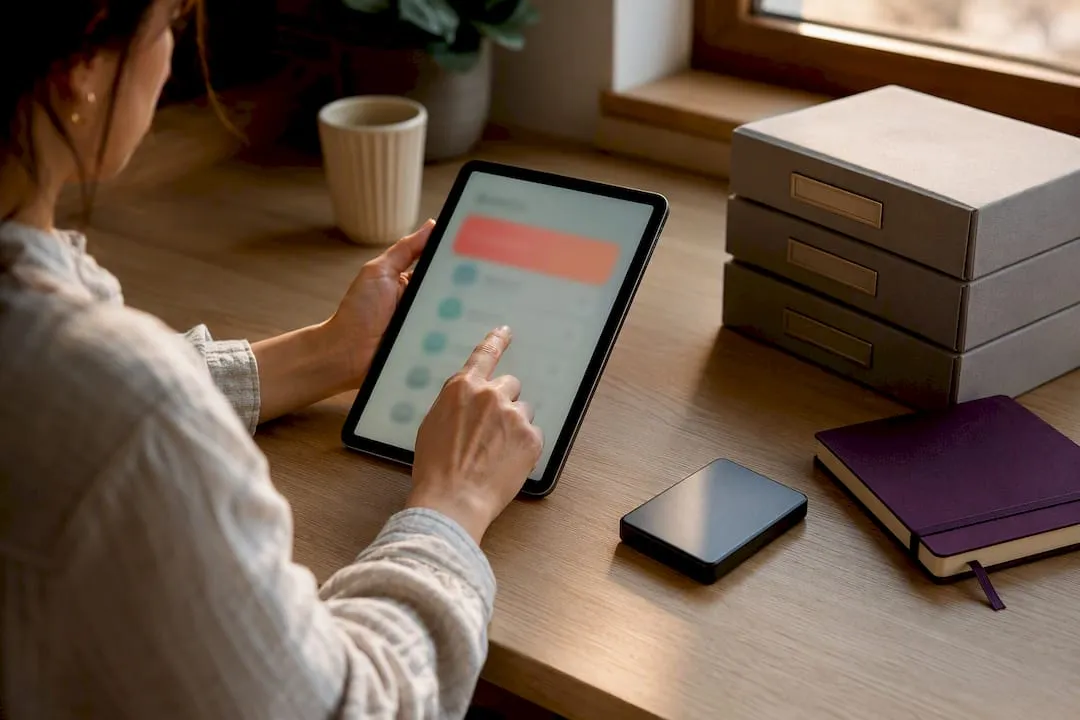
Yes. Most platforms let you replace or add files to a digital product so every future download gets the new version, but past buyers usually stay on the file they originally received unless you actively notify them or resend a link. The exact behaviour depends on your platform and the app handling delivery.
TL;DR:
- Replacing a digital file updates future downloads but does not automatically send new versions to past buyers unless your delivery platform offers an automatic notify feature.
- Platforms like Etsy do not retrofit existing orders with updated files, requiring sellers to manually message buyers or update listings with notices.
- Delivery apps such as Fileflare, Sky Pilot, and Filemonk can automatically notify buyers and generate new download links, often with customizable filters for recent buyers.
- Always keep a separate copy of every version to provide to buyers if they encounter issues or require specific file iterations.
- Clear version naming and detailed change notes prevent confusion when updating files, especially for structural or content modifications.
Table of Contents
- How to update digital downloads without losing buyer access
- What to expect on Etsy, delivery apps, and self-hosted setups
- Notifying past buyers: methods, timing, and what to say
- File naming and versioning that prevents confusion
- Updating downloads on Craftsuprint
- One trade-off sellers need to be ready for
- Where Craftsuprint fits when you’re ready to update your own downloads
- Platform docs worth bookmarking
- Sources
- FAQ
How to update digital downloads without losing buyer access
The mechanics of updating digital downloads are simple in theory: find the product, swap the file, done. The part sellers get wrong is assuming the swap alone reaches everyone who already bought it. It doesn’t, in most cases, and that gap is where support tickets come from.
Here’s the sequence that keeps things clean, whichever storefront or app you’re using.
- Locate the exact asset. Open the product in your store dashboard or hosted-delivery app and find the specific file attached to that listing, not a similarly-named duplicate sitting in your media library.
- Choose replace or add-new. Replacing overwrites the existing file so the same download link now serves the updated version. Adding a new file alongside the old one keeps both available, which suits bonus content or optional formats but does nothing for buyers who need the corrected version specifically. On Fileflare, for instance, replacing an asset keeps the existing download link live while pointing it at the new file, so you’re not generating a fresh URL every time you make an edit.
- Test before you publish. Place a test order or use a guest preview to confirm the file downloads cleanly and opens as expected. This step gets skipped more often than it should, usually right before a seller discovers the replacement file was still the working draft.
- Decide who needs to know. A typo fix on page three of a PDF probably doesn’t warrant an email blast. A corrected cutting template that was printing at the wrong scale absolutely does. Set your notification policy before you upload, not after buyers start emailing you.
- Record the change. Note the version label, the date, and the reason in your own product log, and update any changelog visible to buyers if your platform supports one.
Apps built specifically for digital delivery tend to handle step two more gracefully than general-purpose store platforms. Shop Circle’s breakdown of the process notes that centralised asset repositories mirror an updated file straight into a buyer’s existing download portal, so the order history doesn’t need touching at all. That’s a meaningfully different experience from manually re-uploading a listing and hoping the old link still resolves.
Pro Tip: Keep a spare copy of every file version you’ve ever published, even the ones you’re embarrassed by. If a buyer says “the new file broke my project,” you need to be able to open the exact version they downloaded, not the one you remember uploading.
What to expect on Etsy, delivery apps, and self-hosted setups
Behaviour varies enough between platforms that assuming one setup works like another is where most update headaches start.
- Etsy: the file a buyer downloaded at the point of purchase is fixed to that order. Etsy doesn’t retroactively push a replacement file into a past sale, which sellers frequently confirm in community discussions after discovering the hard way that editing a listing doesn’t touch orders already completed. The usual workarounds: send the corrected file directly through Etsy Messages to buyers who ask, or add a clear note on the listing pointing new customers to the fixed version while flagging that existing buyers should message for the update.
- Hosted delivery apps (Fileflare, Sky Pilot, DPD, Filemonk): these apps are built for exactly this problem. Most let you replace a file and keep the download link intact, and several bundle a notify feature that emails past buyers automatically. DPD’s version can generate new activated download links and send them out with date-range filtering, so you can target buyers from the last fortnight without pinging someone who bought two years ago. Filemonk’s “Notify all buyers” feature works similarly, sending personalised emails with updated download links using template variables for the buyer’s name. Sky Pilot follows the same general pattern of replace-and-optionally-notify, though the specific email caps and filtering options differ from app to app, so check your dashboard settings rather than assuming parity.
- Self-hosting: if you’re serving files from your own storage or a CDN rather than a marketplace app, the file’s URL needs to stay stable across updates. Swap the file at the same address and existing links keep working. Change the address, and you’ve just broken every download link you ever sent out, which means updating product records and emailing buyers becomes mandatory rather than optional.
A couple of pitfalls catch even experienced sellers out. Attaching a new file to a product doesn’t automatically link it to orders placed before the attachment happened, so “I updated the file” and “every past buyer can now access it” are two separate facts, not one. And if a replacement changes the file’s structure significantly, such as swapping a single-layer PDF for a multi-layer editable version with different dimensions, buyers who built a project around the old file’s specifications may find the new one doesn’t fit what they’ve already started.
Notifying past buyers: methods, timing, and what to say
Not every update deserves an email. A cosmetic tweak to a watermark or a colour adjustment on a preview image can go out silently. A corrected pattern, a fixed compatibility issue, or an added bonus file is a different matter; buyers who already downloaded the broken version deserve to know a fix exists.
Three practical routes for reaching them:
- Built-in app notify features. The fastest option when your delivery app supports it. Filemonk and DPD both offer one-click notify flows that generate fresh links and send them automatically, though Fileflare’s documentation notes caps on daily bulk notifications and that some apps don’t filter by order status, so a refunded buyer might still get the email.
- Email marketing tools. Platforms like Klaviyo or Omnisend give you more control over segmentation and formatting than a built-in notify button, at the cost of extra setup time.
- Direct platform messages. Slower for volume but useful for Etsy sellers who don’t have automatic notify tools and need to reach a handful of recent buyers individually.
Segmentation matters more than it seems. If your app allows filtering by purchase date, use it, both to avoid spamming buyers who no longer need the update and to keep your notification volume under whatever email cap the app enforces.
A short update email needs surprisingly little: a subject line that says what changed, one sentence explaining the fix, a direct download link, the file format they should expect, and a way to reach you if something doesn’t work.
Pro Tip: If buyers report a link that isn’t working after an update, check whether your app’s notify feature sent the old link rather than a freshly generated one. It’s a common cause of “your fix didn’t work” messages that turn out to be nothing of the sort.
File naming and versioning that prevents confusion
A visible version number stops half the confusion before it starts. Something as simple as adding v1.1 or a date stamp to the file name tells a returning buyer, at a glance, whether they’re holding the current version.
- Adopt one versioning format and stick to it. Either sequential (v1.0, v1.1, v2.0) or date-based (2026-03-14) works, so long as it appears in the file name itself, not just in your own notes.
- Offer both print-ready and editable formats where you can, labelling each clearly so a buyer doesn’t open a locked PDF expecting to edit text.
- Avoid structural changes inside a minor update. If a fix genuinely changes layer count, dimensions, or file type, treat it as a new major version rather than quietly overwriting the original, and tell buyers the update policy up front.
- Add a short “what’s changed” note on the product page. A single sentence, updated each time, gives returning buyers a reason to re-download without needing to contact you first.
Updating downloads on Craftsuprint
The same replace-or-add logic applies directly to Craftsuprint product pages. If a printable pattern has a scaling error or a card kit needs a corrected template, swap the file on the listing and add a brief note in the product description flagging the fix and the date. For bonus content, a weekly freebie or a linked tutorial post is a low-friction way to surface something new without editing the original listing at all.
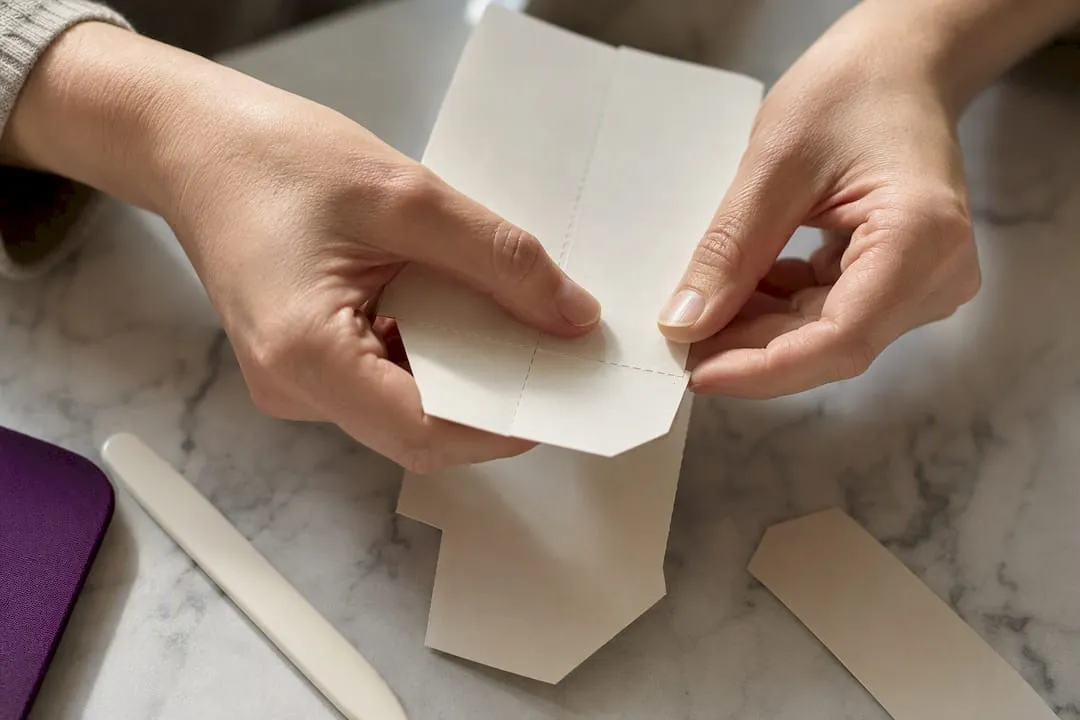
Printable crafts benefit from a bit more than a corrected file alone. Pairing a fixed template with a short demo video or a one-page PDF showing exactly what changed helps buyers trust that the correction actually solves the problem they hit, particularly for card-making kits where scale and fold lines matter to the finished piece.
One trade-off sellers need to be ready for
Silent overwrites feel efficient until a buyer builds a card layout around a template you’ve since corrected, and now their finished piece doesn’t match what they see on your listing. Notify for anything substantive; save silent fixes for genuine cosmetic tweaks. A designer who added a missing bonus sentiment tag to a card kit and quietly emailed existing buyers about it kept every one of those customers happy. The alternative, letting them find out by accident, rarely goes that well.
— Rob
Where Craftsuprint fits when you’re ready to update your own downloads
If you’re selling printable craft designs and want a marketplace built around exactly this kind of file management, the platform provides a way for designers to list, revise, and resurface downloadable projects without wrestling with a general-purpose ecommerce plugin.
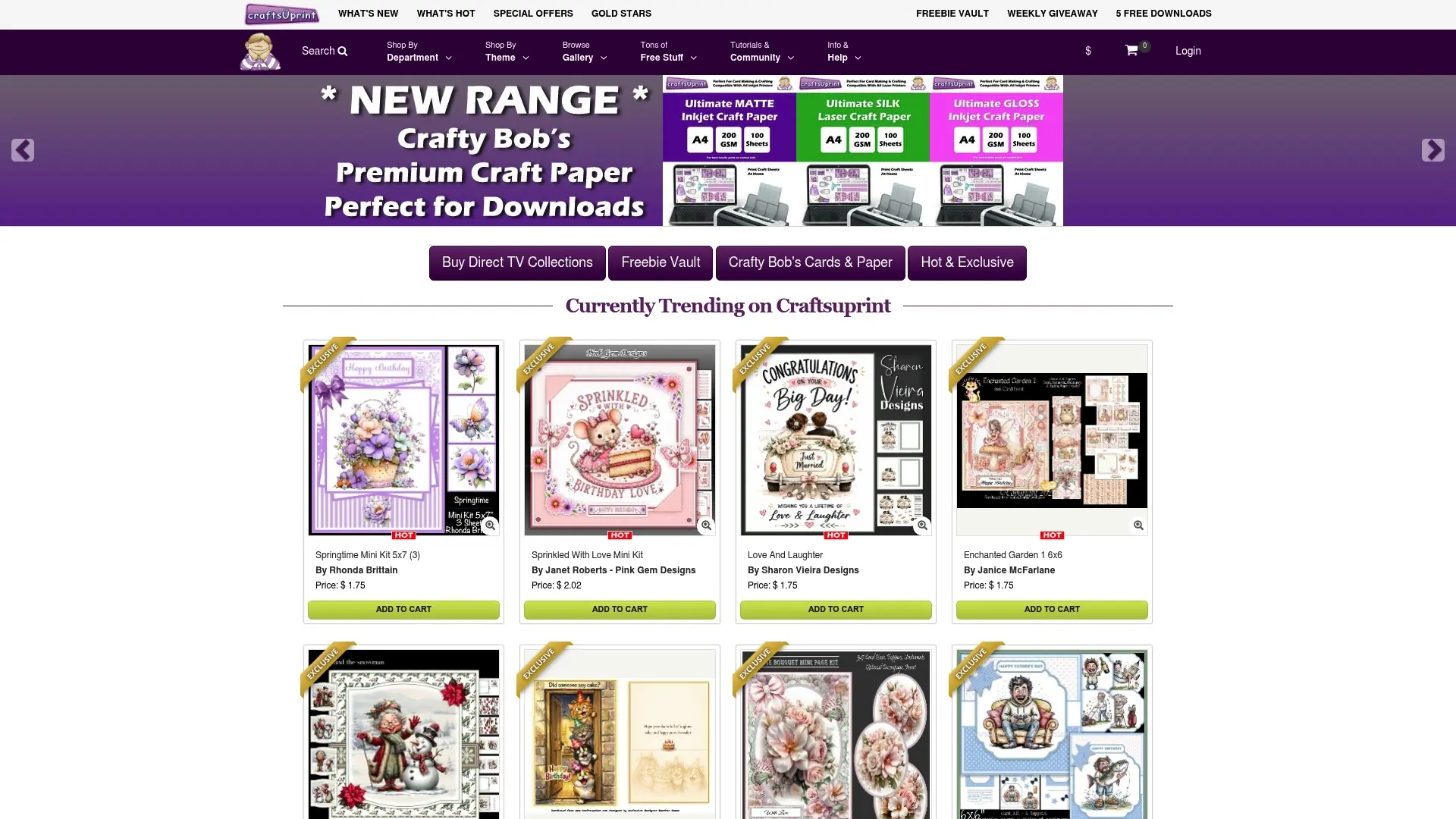
You can attach a corrected template, add a linked tutorial, or drop a bonus file into a weekly freebie without rebuilding your whole listing from scratch, and a rewards program gives designers a way to earn from their work as buyers keep coming back. Whether you’re revising a card-making kit or adding a new paper pattern, the craft download section is where sellers manage listings and where buyers go looking for the latest version of a design they’ve bought before. If you’re weighing up where to list your first printable pattern or want to see how existing sellers structure their updates, browse Craft & Craft Downloads and start setting up your product page today.
Platform docs worth bookmarking
- Fileflare: How to Update an Asset
- DPD: Send Product Updates to your Buyers
- Filemonk: Send new download links after updating a digital product
- Shopify digital downloads: notify buyers after updating product content
Sources
- How to Update an Asset - Fileflare Digital Downloads Shopify App
- Send Product Updates to your Buyers | DPD
- Send new download links after updating digital product | Filemonk Help Center
- Update Digital Files Post-Purchase on Shopify (2026) – Shop Circle
- Shopify digital downloads help center | Send new download links after updating digital product
FAQ
Where do I find my digital downloads after buying them?
Check your account library or order confirmation email first, since most platforms store a permanent link there even after the original download expires from your inbox. On marketplaces without account libraries, the original purchase email or order page usually holds the link.
How do I change or update a download I’ve already listed?
Open the product in your store or delivery app, replace the existing file or add a new one, then decide whether to notify past buyers through a built-in notify feature or a direct message. Testing the replacement before publishing avoids the most common support headache: a broken or outdated link going out to buyers.
What does a digital download actually mean for buyers?
A digital download is a file, typically a PDF, image, or template, delivered electronically after purchase rather than shipped as a physical item. Buyers usually receive either an instant download link or an emailed link to access the file.
How do I change the download settings on my product?
Download settings, such as expiry windows, download limits, and file format, are managed in your delivery app or store dashboard rather than on the file itself. Replacing a file doesn’t automatically reset a download limit; check your specific app’s settings, since this varies between hosted delivery tools.
Will replacing a file automatically reach everyone who already bought it?
Not usually. Replacing a file updates what future downloads deliver, but past buyers typically need a notify feature or a direct message to get the new version, unless your platform’s repository mirrors updates straight into buyer accounts automatically.