
One Session: Crafters, Organize Digital Craft Files with Totes & Cart
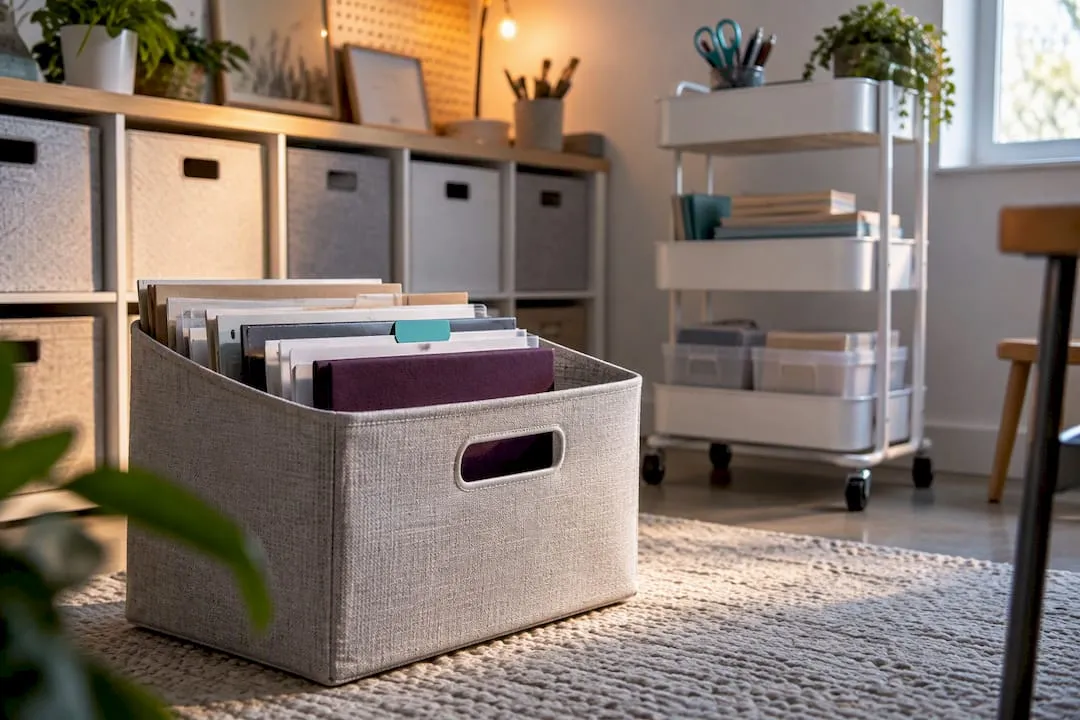
Keep every craft asset in one master “creative library” on a single cloud drive, sorted into numbered folder totes with an active-projects folder for whatever you’re working on right now. Name every file with a short pattern like date_project_designer_version, and back everything up using the 3-2-1 rule: three copies, two types of storage, one copy offsite. Do those four things and you’ll find any file in under a minute.
TL;DR:
- Maintaining a single master cloud library with clear folder totes enhances organization and speeds file retrieval, especially when using a consistent numbering system.
- Using a standardized filename pattern that includes date, project, designer, and version helps prevent overlaps, aids searchability, and preserves revision history.
- Backing up files with the 3-2-1 rule and regularly verifying backups ensures data safety against drive failure and accidental deletion.
- Employing lightweight tools like duplicate finders and visual browsers reduces clutter and saves time during file management.
- Engaging in quarterly maintenance, including re-running duplicate checks and updating backups, keeps the system functional and prevents chaos buildup.
Table of Contents
- Digital declutter and inventory: gathering, triaging and deduplicating
- Building one master library with folder totes and an active cart
- What filename actually works for craft files?
- How should you back up and search your craft files?
- Which tools actually save you time?
- Keeping the system alive after the first big sort
- Why simple systems beat clever ones
- Get a head start with Craftsuprint’s ready-made assets
- Sources
- FAQ
Digital declutter and inventory: gathering, triaging and deduplicating
Before you can organize digital craft files properly, you need to know what you actually have. Most crafters have SVGs, PDFs, PNGs and Silhouette Studio (.studio3) files scattered across downloads folders, desktops, old memory sticks and three different cloud accounts nobody remembers signing up to.
Here’s a process that works in an afternoon rather than a lost weekend:
- Search your device and cloud accounts for the common craft file types, then copy (don’t move yet) everything into one temporary “inbox” folder.
- Work in short, timed sessions of 30 to 60 minutes. Longer than that and decision fatigue sets in, and you start keeping things “just in case.”
- Sort each file into keep, archive or delete as you go. If you haven’t opened it in two years and it’s not a purchased pattern, it’s probably safe to bin.
- Run a duplicate-finder tool across the inbox before deleting anything, and manually check a sample of the matches. Automated tools occasionally flag near-identical but not identical files.
- Keep one archived copy of every purchased file, even ones you no longer use, since re-downloading a discontinued design isn’t always possible.
Pro Tip: Do the declutter in reverse chronological order, newest files first. Your recent downloads are the ones you’re most likely to need again, and sorting them first gives you quick wins that make the rest of the session feel less daunting.
Building one master library with folder totes and an active cart
Craft file chaos usually comes from having several “master” locations instead of one. Fix that first, then build structure inside it.
Create a single top-level folder, something like “My Creative Library,” and put it in whichever cloud service or main external drive you’ve chosen as your permanent home. Stanford’s guidance on organising your digital workspace makes the same point for any kind of file collection: pick one primary place, and build folders that mirror how you actually work rather than a generic office-style layout.
For crafters, that means thinking in totes rather than departments. A physical craft tote holds one category of supplies; a digital tote does the same job for files. Try something like this:
01_Card Makingfor card templates, toppers and sentiments02_Cutting Filesfor SVGs and die-cut patterns03_Scrapbookingfor papers, embellishments and layouts04_Paper Craftfor 3D projects, boxes and decorations05_Needleworkfor cross stitch charts and knitting patterns06_Reference & Tutorialsfor guides and inspiration
The numbers keep the totes in the order you use them most, not alphabetical order, which rarely matches your workflow. Limit subfolders to two or three levels deep. Beyond that, you’re hunting through menus instead of finding files. Alongside the totes, keep an “Active Projects” folder on your desktop or as a shortcut, a temporary cart for whatever you’re mid-way through, which gets emptied back into the right tote once the project’s done.
What filename actually works for craft files?
A filename should tell you what the file is without opening it. The Smithsonian Libraries’ guidance on file naming recommends names that are distinctive, human-readable and consistent enough that a computer can sort or batch-process them too. That’s exactly what crafters need when a folder holds forty near-identical Christmas card designs.
A template that works well for craft files:
YYYYMMDD_project_brief_designer_v01.ext- Example:
20260214_valentine-card_floral-topper_janedoe_v01.svg
Each part earns its place. The date sorts files chronologically without you lifting a finger. The project and brief tell you what it is at a glance. The designer name matters if you buy from multiple marketplace sellers and need to credit or re-find their other work. The version number stops you overwriting your only good copy.
- Keep the whole name under roughly 25 characters where practical, longer names get truncated in some software and cutting programs.
- Avoid spaces and special characters like
&,%or#. Use hyphens or underscores instead. - Never change the file extension.
.studio3files aren’t.svgfiles no matter what you rename them. - Use v01, v02 and so on for revisions, and rename the finished version
_finalonly once you’re genuinely done editing.
Pro Tip: Add a one-line description in the file’s “details” or “comments” field, not just the filename. If you ever lose track of what “v03” actually was, that description saves you opening the file to check. This guide to naming digital files for crafters walks through the same system with more worked examples.
How should you back up and search your craft files?
Pick one primary storage location, cloud-first for most hobbyists, and keep your master library there so it’s searchable from any device. Cloud platforms are genuinely good at rescuing you when a filename fails you. Google Drive’s search filters let you narrow results by file type, owner and date, using operators like type:pdf or before:2026-01-01, and both Drive and OneDrive let you search the descriptions and tags you add to a file, not just its name.
Storage isn’t the same as backup, and this is where most home crafters get caught out. The 3-2-1 backup rule, three total copies, on two different types of media, with one copy stored offsite, is a practical baseline even for a single-person craft business. In practice, that could look like:
- Your working copy on your laptop or cloud drive.
- A second copy on an external hard drive at home.
- A third copy in a separate cloud account or a drive kept at a different physical location.
Check that all three actually exist and open correctly every quarter, not just once at setup. Archival guidance from The National Archives recommends reviewing storage and migrating files every three to five years, since drives fail and formats age out of support. It’s also worth knowing your cloud provider’s restore window before you need it. Many services keep deleted files recoverable for around 30 days, according to Google Drive’s own documentation, which means a mistaken bulk delete is fixable if you catch it quickly, and permanent if you don’t.
Which tools actually save you time?
Not every crafter needs dedicated software, but a few lightweight tools pay for themselves fast once your library grows past a few hundred files.
- A visual browser or lightweight digital asset viewer shows thumbnails, ratings and tags at a glance, worth it once scrolling filenames stops being faster than looking at pictures.
- Duplicate-finder utilities catch the “final,” “final2” and “final_ACTUALFINAL” versions that pile up during a busy project.
- Backup automation tools handle the offsite copy in your 3-2-1 setup without you remembering to do it manually.
- Pattern viewers such as Pattern Keeper or KnitCompanion let sewers and knitters annotate and track progress directly against the pattern file, so notes never get separated from the design.
- If you’re converting flat designs into physical objects, a service like 3D Print Pics can turn a drawing or image into a 3D model worth filing alongside your source artwork.
Keeping the system alive after the first big sort
The system only works if you maintain it. Build a short quarterly habit rather than an annual overhaul:
- Empty and re-file the Active Projects cart.
- Run your duplicate finder again, small builds of clutter are easier to catch early.
- Verify your backup copies actually open, not just that they exist.
- Move finished projects from active work into the correct numbered tote.
If you want a head start rather than building totes from scratch, Craftsuprint’s printables workflow guide has starter templates worth adapting to your own naming pattern.
Why simple systems beat clever ones
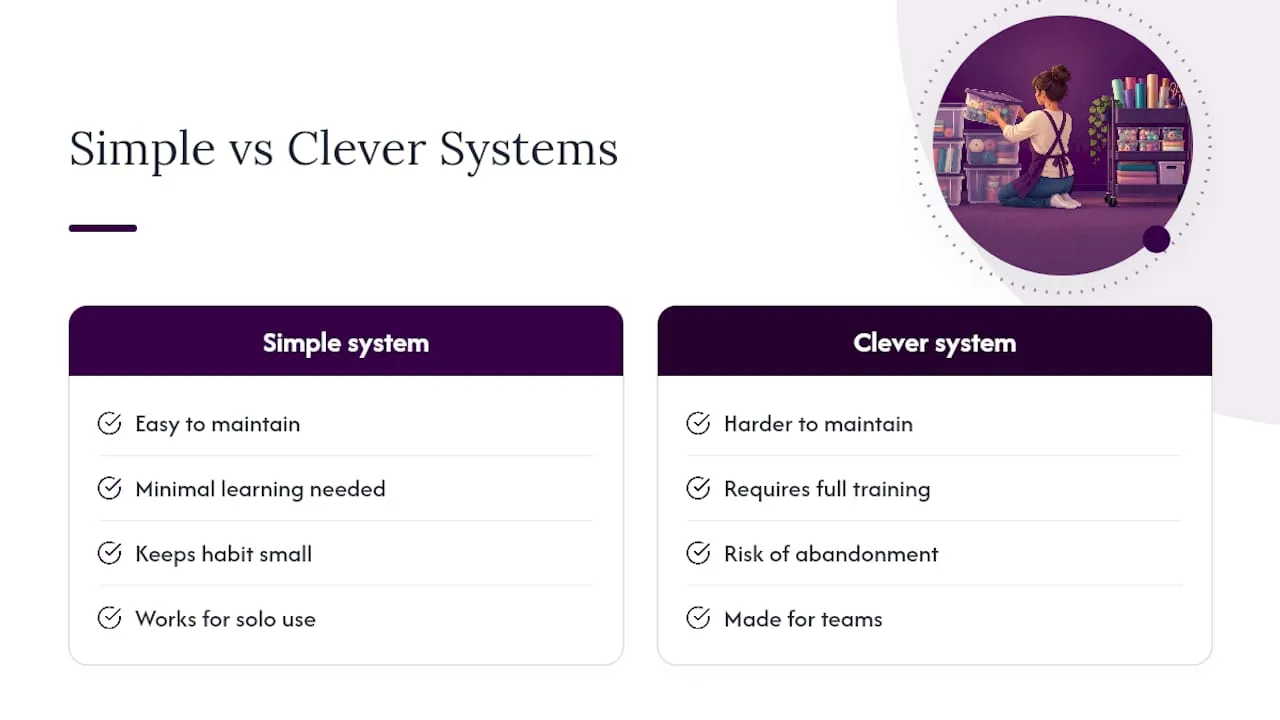
Most crafters abandon organising systems because they’re too complicated to maintain, not because the folders were wrong. Keep the habit small enough to survive a busy month.
You’ll know it’s time to graduate to a proper digital asset management platform when search inside your cloud drive stops being fast enough, or when a small team needs shared, permission-controlled access to the same library. Until then, folders and discipline outperform software you’ll never fully learn.
— Rob
Get a head start with Craftsuprint’s ready-made assets
Craftsuprint gives you a shortcut past the file-collecting stage that eats most of the time in any organising project: a marketplace of ready-made, professionally designed downloads you can drop straight into your new folder totes.
Rather than spending a session hunting for decent card templates or cutting files to populate your library, browse categories built for exactly this purpose. The Card Making section covers toppers, sentiments and full kits ready to sort into your “01” tote, while Cutting Files gives you SVGs formatted for the naming conventions above. If you’re building out a scrapbooking or paper craft archive, the Scrapbooking and Paper Craft categories are worth a browse too, and Designer Resources covers the extras that don’t fit neatly elsewhere. Every download arrives with consistent, well-labelled files, so the folder system you’ve just built stays clean from the very first import. Have a look through the Card Making category today and see what fills your first tote.
Sources
- Google Drive: use filters and search files (University of Minnesota IT)
- Organizing your digital workspace (Stanford CTL)
- Best practices for filenaming, organizing and working with data (Smithsonian Libraries)
- Preserve - Archives sector guidance (The National Archives, UK)
- 3-2-1 backup rule (Huntress blog)
FAQ
What is the best way to organise digital craft files?
Keep one master library on a single cloud drive, split into numbered folder totes by project type, with a consistent filename pattern and an active-projects folder for current work. Backing this up with the 3-2-1 rule protects against lost files and failed drives.
What is the best way to organise craft supplies digitally?
Group digital supplies, SVGs, patterns, and templates, into category folders that mirror your physical craft totes, using the same numbered naming logic across both. This keeps your cutting files and card-making assets easy to browse whether you’re searching your drive or your craft room.
How do I organise thousands of digital photos or craft files?
Start with a timed decluttering pass using a duplicate-finder tool, sorting into keep, archive or delete before you build folders. Then use your cloud service’s advanced search filters, by type, date or owner, to find anything that slips through the naming system.
How do I declutter digital craft files without losing anything important?
Copy everything into a temporary inbox folder first rather than deleting directly, then triage in short sessions before removing duplicates. Always keep one archived copy of purchased files, since some designs can’t be re-downloaded once removed from a marketplace.
Does Craftsuprint offer templates for organising files?
Craftsuprint’s printables workflow guide and file-naming walkthrough both offer practical starting points you can adapt to your own folder tote system.